Description
Select Keys
All the selection tools that should’ve been in Blender from the start. Makes managing large animation blocks actually bearable instead of clicking keys individually like some kind of masochist.
Key Amp
Brilliant for taking a subtle performance and cranking it up to eleven, or reigning in something that’s gone too far. Works on location, rotation, scale with easy to favour the start, centre or end of your selections – basically anything that moves.
Retimer
This is the one you’ll use constantly. Select your keys, choose the timing origin from the start, middle, end or playhead then drag in or out, easy. Done. Your animation now fits perfectly in that timing. Need to nudge everything a few frames, subtle like… The shift button makes it nice and buttery. No more dragging keys around manually like it’s 1997.
Key Nudge
The fastest way to move keys, full stop. Select what you want, set how many frames to shift, and click the arrows. Keys move instantly – no dragging, no mistakes. Works in both directions and you can set custom increments. Once you’ve used this, going back to manual dragging feels like using a stone tablet.
Workflow
Workflow – flip between blocking and polish, smooth with emphasis controls, clean jitter, toggle interpolation and handles in one unified panel.
Key Colors
Organize your keyframes with color coding. Mark blocking keys, breakdowns, or specific animation phases with different colors for visual clarity. Particularly handy when you’re working with long timelines or complex animation where you need to see your structure at a glance. Keeps everything tidy and findable.
Onion Skinning
See your character’s previous and next positions right in the viewport. Fully GPU-optimized for smooth performance even with complex rigs. Adjust how many frames before and after you see, change the opacity, tweak the colors – it’s all there. Essential for getting the spacing and arcs right without constantly scrubbing back and forth.
Breakdown/Overshoot
Pose-to-pose animation made easy. Creates breakdown poses at any percentage between your keys, or adds overshoot for more dynamic movement. Adjust the slider and watch the pose update in real-time. Takes the mathematical guesswork out of in-betweening so you can focus on making it look good instead of doing mental arithmetic.
Lock to World
Locks your selection to world space, so you can move the parent without the child following along. Brilliant for things like keeping a hand planted on a table while the body moves, or maintaining foot contact during walk cycles. One of those tools you don’t know you need until you have it, then wonder how you ever lived without it.
Custom Pivot
Changes your pivot point to wherever you need it – different for rotation, scale, or both. Essential when you’re animating props that need to rotate around a specific point, or scaling from somewhere other than the object origin. Set it once, use it as many times as you need, reset when you’re done.
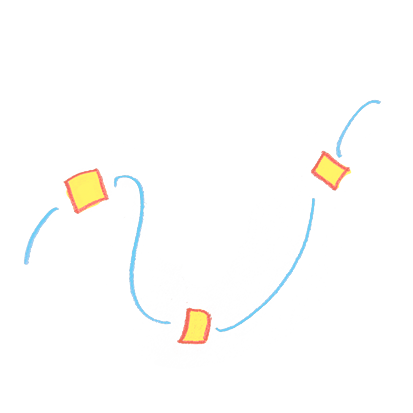
Motion Paths
Visualize and edit your animation arcs directly in the 3D viewport – no more ping-ponging between timeline and camera view. Click any keyframe on the motion path to drag it into position, scrub the timeline to check your spacing, then grab the next one. Stay in edit mode as long as you need, with full access to all Blender controls. Perfect for sculpting natural motion paths and getting your arcs just right without breaking flow.